 slouchpad
Your Mac, from the couch.
Slouchpad turns your iPhone into a media remote, trackpad and keyboard for controlling your Mac. Play, pause, skip, type, change the volume and dim the screen from the comfort of your couch.
Features
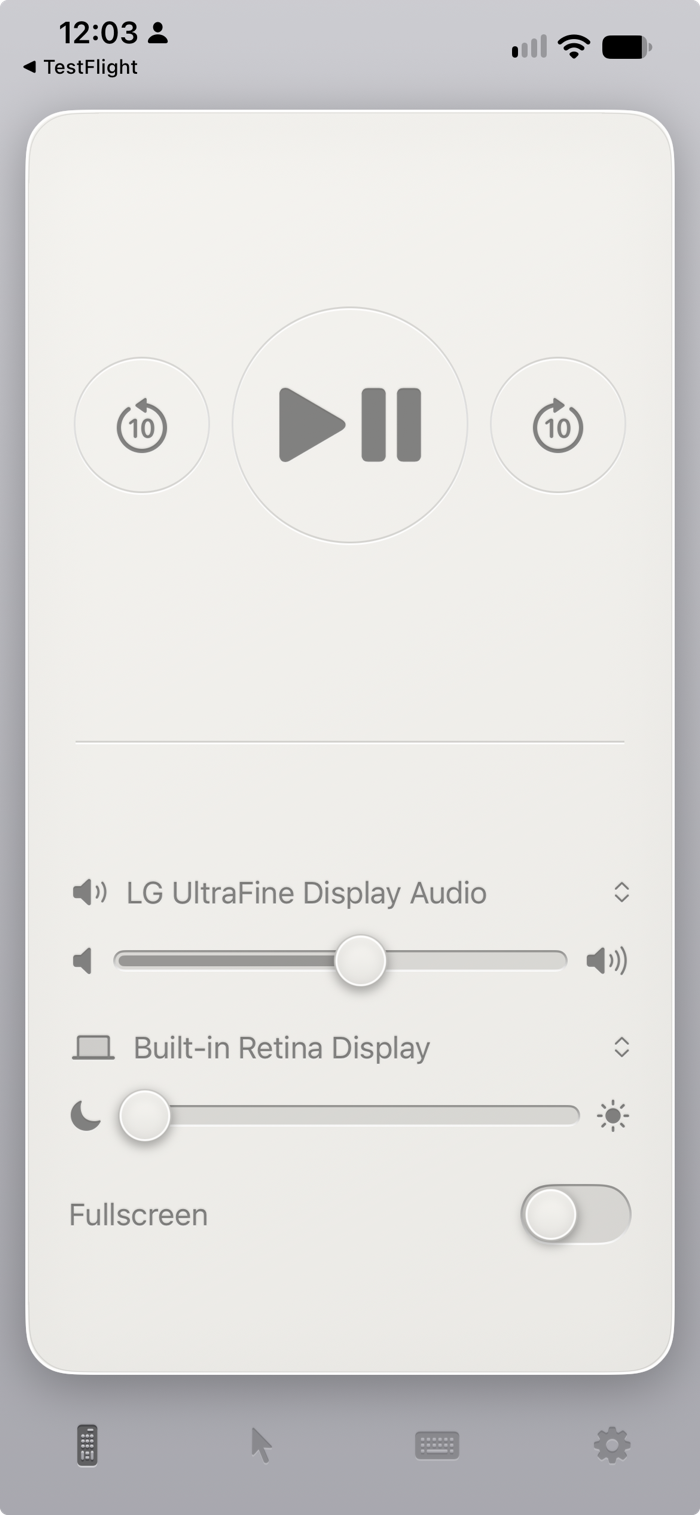
Remote
Everything you need to watch video on your Mac without leaving the couch.
- Play/pause, skip backward and forward
- Volume and brightness controls, with output selection
- Fullscreen mode
Trackpad
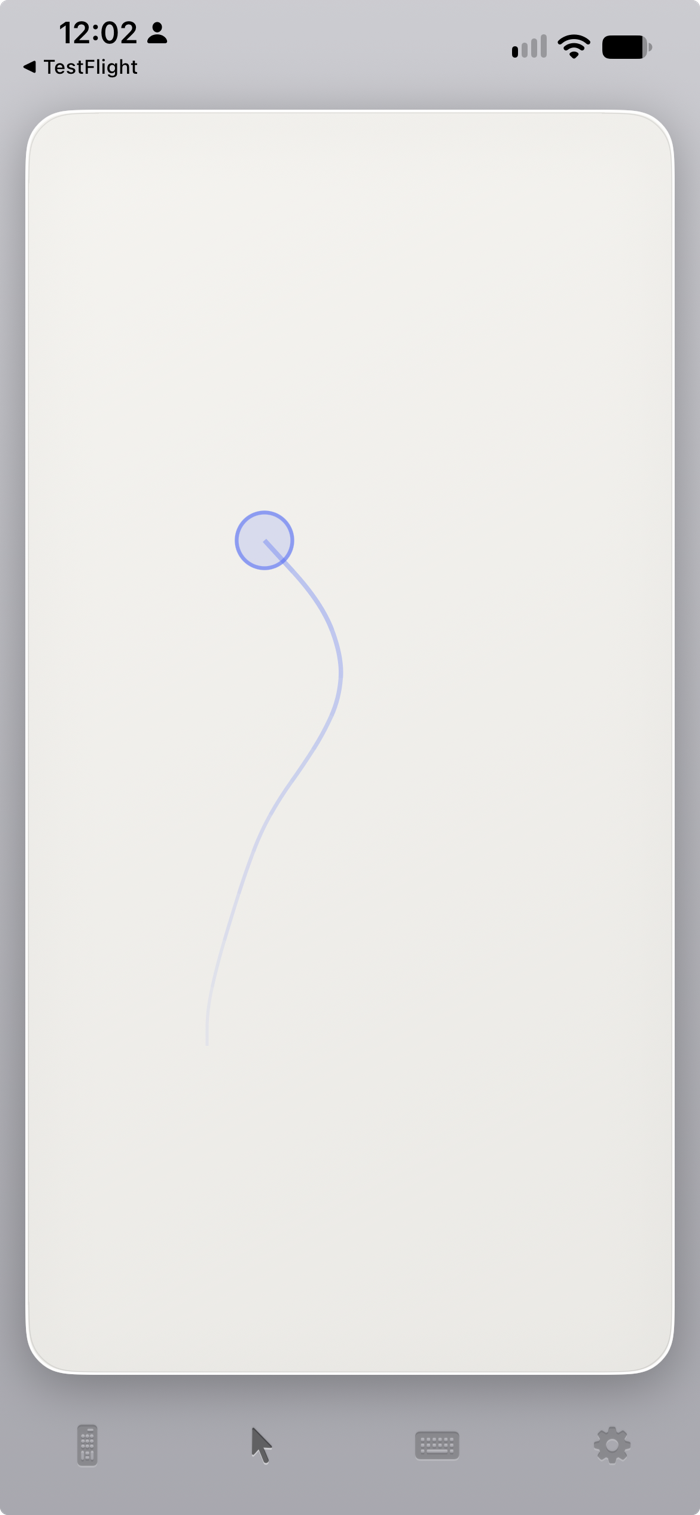
A plain glass trackpad for your Mac.
- Move, click, scroll and drag
- Brightness, with output selection
- Pointer speed and visual trail controls (optional)
Keyboard
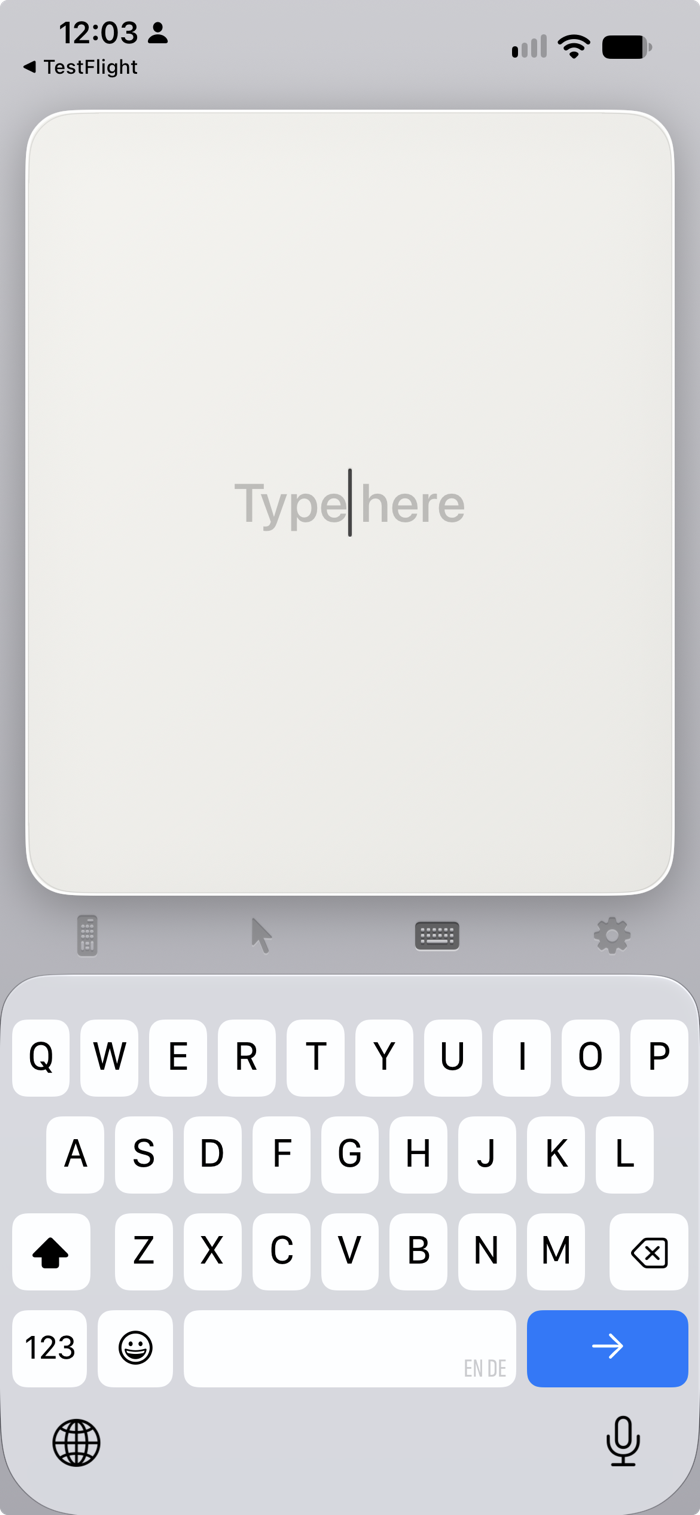
Type with your iPhone's keyboard and the text appears on your Mac, in whichever app is in front.
- Input sent in real time to your Mac
- Large preview of entered text on the Mac (optional)
- Native audio transcription
Dark mode
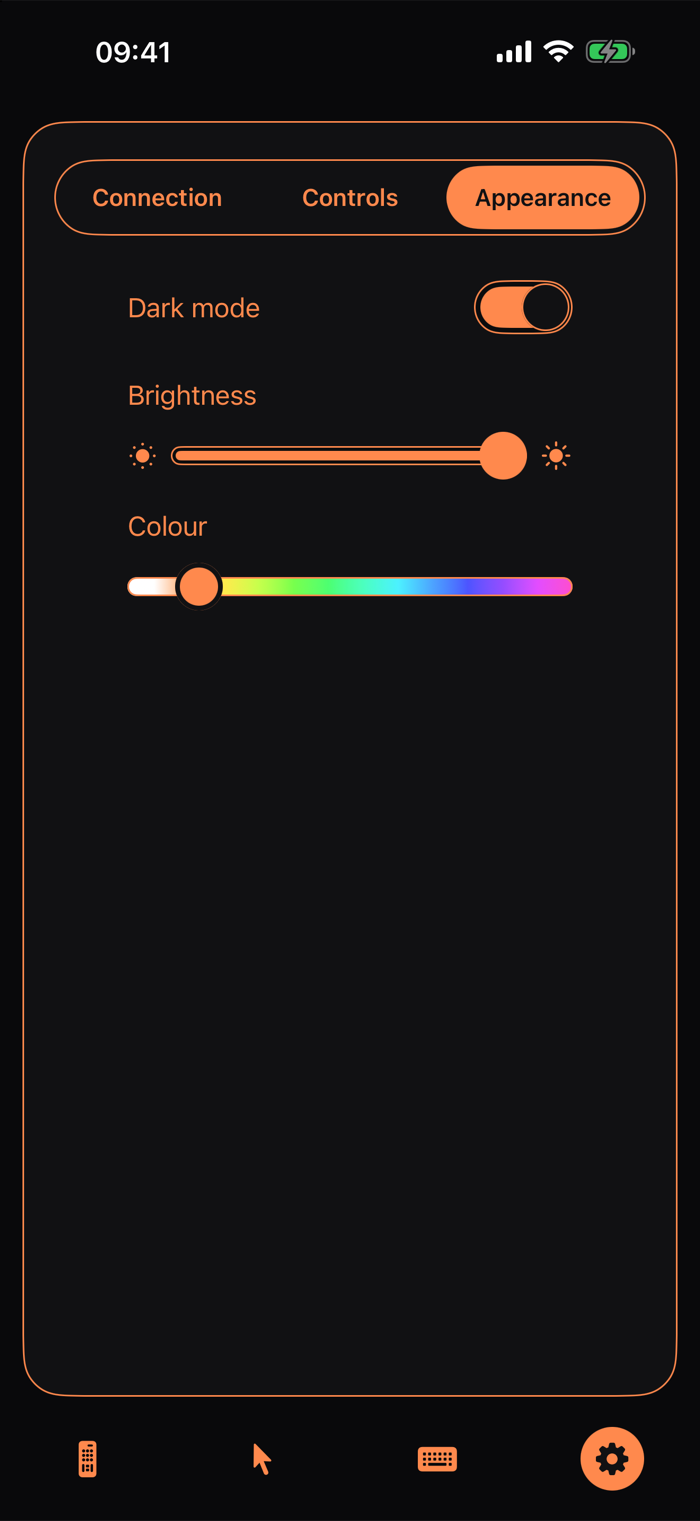
Easy on the eyes when the lights are down.
- Black background with a colour you choose
- Dim the app below your iPhone's own minimum brightness
Setup guide
Four steps: install the iPhone app, put the Mac app on your Mac, let it control the pointer and keys, then connect your iPhone.
Install the iPhone App
Get Slouchpad from the App Store and install it on your iPhone.

Install the Mac App
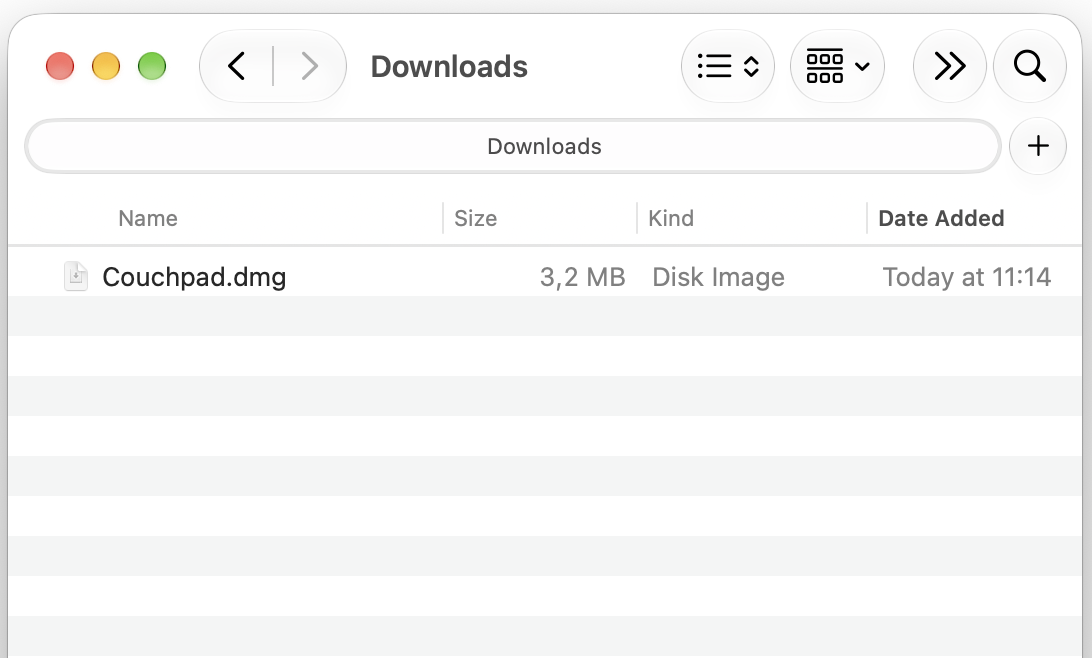
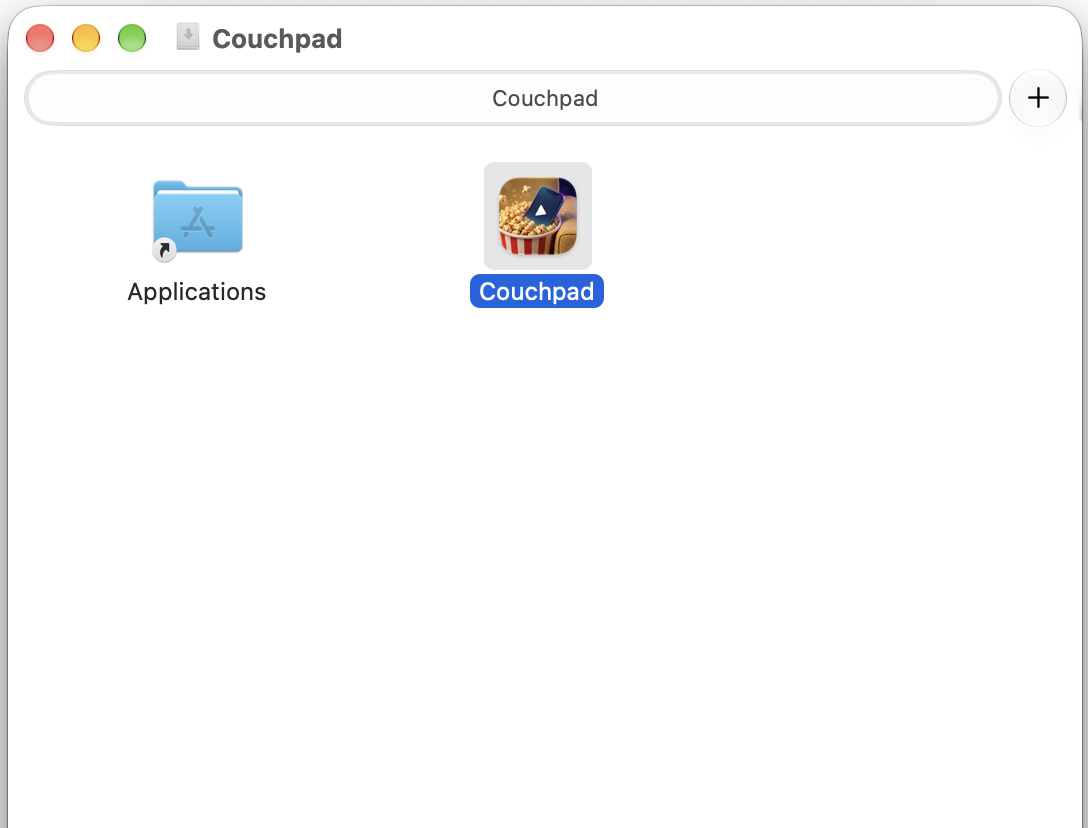
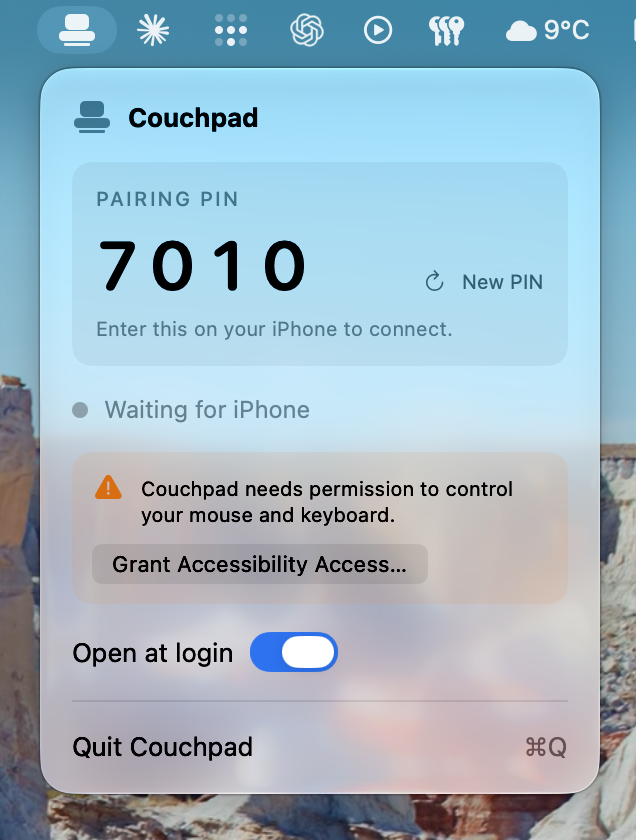
Download the Mac App, drag it to Applications and open it. It lives in your menu bar behind a couch icon.
Permit
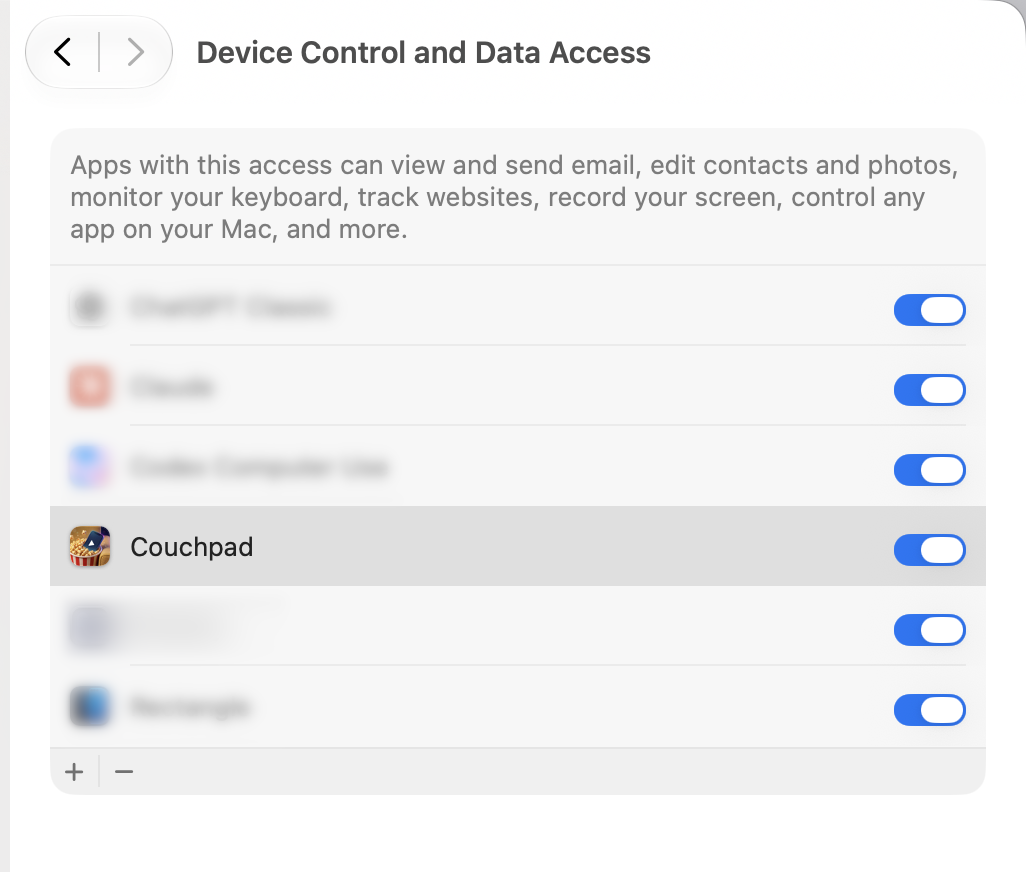
On your Mac: Under Privacy & Security, allow Slouchpad in Accessibility so it can move the pointer and press keys for your phone. The button in the menu takes you there.
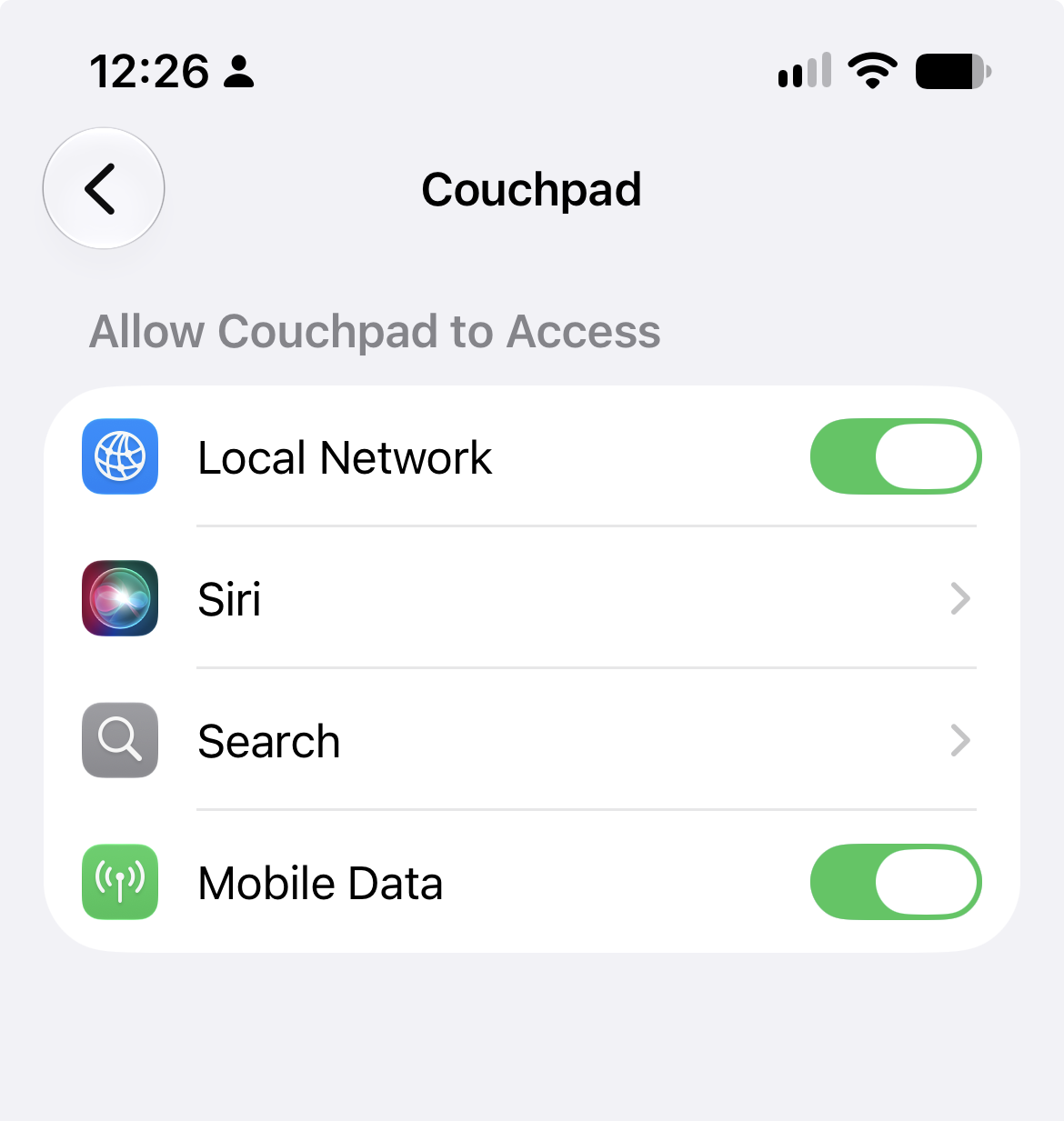
On your iPhone: Make sure Slouchpad has Local Network access (Settings, then Slouchpad) so it can find your Mac.
Connect
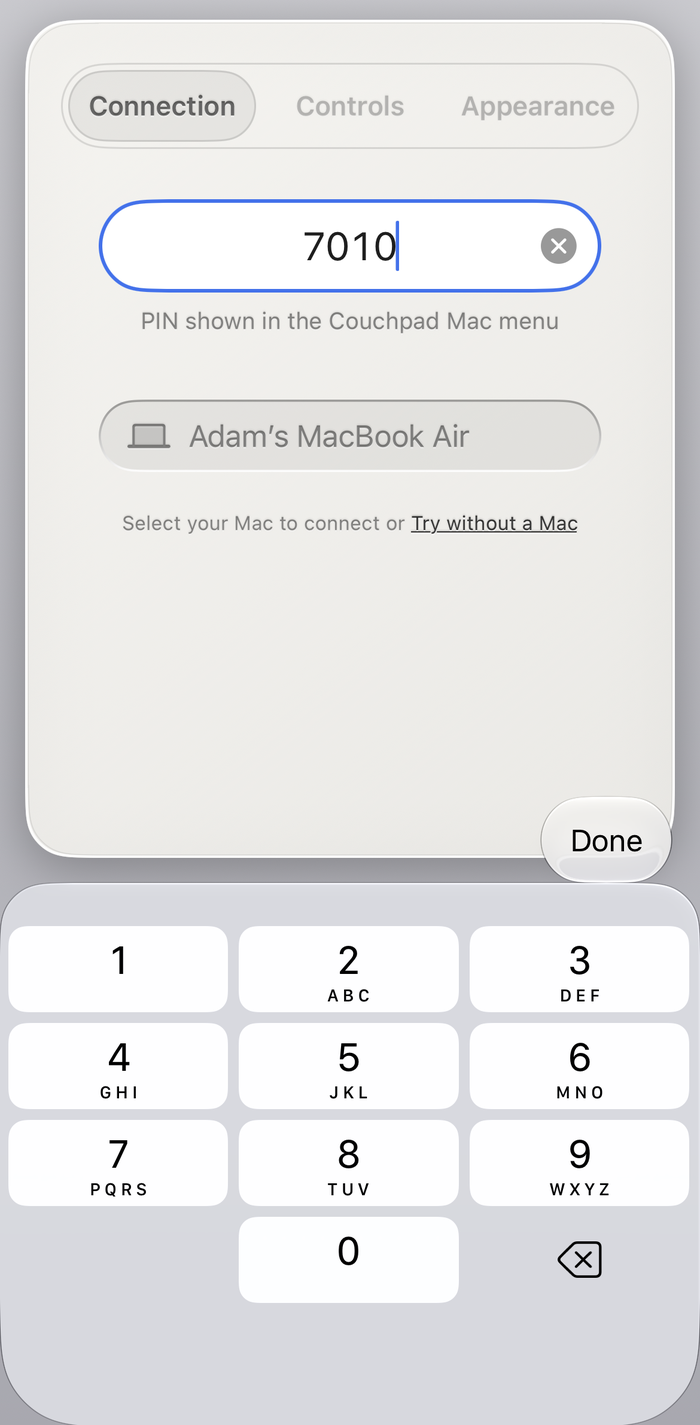
Open the Slouchpad menu to see your PIN, then enter it in the iPhone app and choose your Mac.
Your iPhone and Mac need to be on the same Wi-Fi network. Brightness works on the screens macOS lets apps control, such as the built-in display and Apple displays. Many other monitors can only be adjusted with their own buttons.
Something not working? See Support, or write to support@slouchpad.com.
Support
Quick answers to the most common questions. If yours isn't here, write to support@slouchpad.com.
New here? Start with the setup guide.
Connecting
My iPhone can't find my Mac
- Check that both are on the same Wi-Fi network. Guest networks, some office networks and some hotel or student Wi-Fi stop devices seeing each other.
- Check the Slouchpad sofa icon is in your Mac's menu bar. If not, open Slouchpad from Applications.
- On your iPhone, open Settings → Privacy & Security → Local Network and make sure Slouchpad is on.
- If you use a VPN on either device, try turning it off.
- If your Mac's firewall is on, allow incoming connections for Slouchpad in System Settings → Network → Firewall.
Where do I find the PIN?
Click the Slouchpad icon in your Mac's menu bar. The PIN is shown at the top. Enter it in the iPhone app and choose your Mac from the list.
It says "Too many wrong PINs"
To stop anyone guessing your PIN, five wrong attempts in a row pause pairing for 30 seconds. Each further batch of five doubles the wait, up to an hour. After 20 wrong guesses in total, the Mac chooses a new PIN. Wait for the pause to end and enter the PIN from the Slouchpad menu. Choose New PIN there at any time to change it.
It worked yesterday and now it won't connect
Your Mac's PIN may have changed, or the Mac may be asleep or on a different network. Check the PIN in the Slouchpad menu, then open Settings in the iPhone app and enter it again.
Using it
The pointer doesn't move, or clicks and keys do nothing
Slouchpad needs the Accessibility permission to act as a mouse and keyboard. On your Mac open System Settings → Privacy & Security → Accessibility and switch Slouchpad on. The Slouchpad menu has a button that takes you there. After you allow it, the iPhone app updates within a few seconds.
How do I type on my Mac?
Tap the keyboard icon in the bar along the bottom of the app. Whatever you type appears on your Mac as you type, in the app that's in front, so click the search box or text field on your Mac first (with the trackpad). Drag along the space bar to move the cursor; the Mac's cursor follows. The Return key presses Return on the Mac, for example to submit a search.
The text I type shows large on my Mac. Can I turn that off?
Yes. In the iPhone app go to Settings → Controls and switch off Typing preview on Mac. The preview is also hidden automatically while a password field is selected.
How do I get back from the trackpad or typing screen?
Tap any icon in the bar along the bottom, or tap the trackpad with three fingers to go back to the remote.
What is the pointer trail on my Mac's screen?
While you use the trackpad, your Mac can show a thin fading trail behind the pointer, and a soft ring that pings outwards for a couple of seconds where it stops. Both help you find the pointer from across the room. Switch it off in Settings → Controls with Pointer trail on Mac, or choose its colour with the Pointer colour strip: drag all the way left for white, or along the rainbow for a colour.
How do I use it in a dark room?
In Settings → Appearance turn on Dark mode. Then use the Brightness strip to dim the app further than the iPhone's own screen allows. Then use the Colour strip: drag it all the way left for white, or along the rainbow for a colour. Warm colours such as orange and red are the gentlest on your eyes in the dark.
How do I drag a window?
Put the pointer on the window's title bar, then hold one finger still on the trackpad until you feel a tap. Slide your finger to move the window and lift it to let go.
The brightness slider is missing or does nothing
macOS only lets apps change brightness on some screens, such as the built-in display and Apple displays. Many other monitors can only be adjusted with their own buttons or on-screen menu. The slider appears only for screens Slouchpad can control.
How does the fullscreen switch work?
In the Apple TV app it sends fn + F, the Mac's fullscreen shortcut. In a browser it presses F to make the video fullscreen and Esc to leave it, which is what video players on streaming sites listen for. The switch follows the window's real state, including when you change it on the Mac.
Does it work away from home?
Slouchpad works over a local Wi-Fi network only. Both devices have to be on the same network. It doesn't connect over the internet, which is also why nothing leaves your network.
Can I try it without a Mac?
Yes. On the iPhone app's settings page (Connection tab), choose Try without a Mac. Every control works on sample data and nothing is sent anywhere.
Removing Slouchpad
How do I uninstall it?
- Choose Quit Slouchpad from the menu bar icon.
- Drag Slouchpad from Applications to the Bin.
- Optionally remove it from System Settings → Privacy & Security → Accessibility.
- Delete the app from your iPhone as usual.
Still stuck?
Write to support@slouchpad.com and tell us your macOS and iOS versions and what you see.
Privacy policy
Slouchpad does not collect, share or sell any personal data. It has no accounts, no analytics, no advertising and no third-party code that tracks you. The one thing it can send us is an anonymous crash report, and only if you switch that on (see Crash reports below).
How it works
Slouchpad has two parts: an iPhone app and a free Mac app. They talk to each other directly over your own Wi-Fi network. Nothing you do in Slouchpad, such as pointer movements, key presses or media controls, leaves your network or passes through any server of ours.
What stays on your devices
- On your iPhone: the PIN you entered, the name of the Mac you last connected to, the address you typed if you connected to your Mac by its address, and your settings (dark mode, colour, brightness, pointer speed, pointer colour, whether to show the pointer trail on the Mac, whether to use the magnifier, and whether to share crash reports).
- On your Mac: the pairing PIN, whether the app opens at login, and whether to share crash reports.
This information is kept only on those devices and is removed when you delete the apps.
Typing
When you use the typing screen, the text you type is sent straight to your Mac over your Wi-Fi network and typed into the app you are using there. Unless you switch it off in Settings, the Mac also shows the text in large type on its screen for a moment. The preview is hidden while a password field is selected. Slouchpad does not keep or send anywhere what you type.
Your Mac’s apps
The Apps screen shows the apps kept in your Mac’s Dock and the other apps that are open. To do that, your Mac sends their names and icons to your iPhone over your Wi-Fi network, while you use the app. The iPhone keeps them in the app’s memory only, never saves them to its storage, and does not send them anywhere else. Slouchpad does not see what is inside those apps.
Crash reports
Crash reports are off by default. If you switch on Share crash reports (in Settings on the iPhone, or in the Slouchpad menu on the Mac), the app sends a report to us when it crashes or freezes, so that we can fix the problem. You can switch it off again at any time; reporting stops at once.
A report contains the technical details of the problem: the app version, the iPhone or Mac model and system version, the language and time zone, how much memory was free, basic device state such as battery level and screen size, and the code that was running. It does not contain what you typed, the name of your Mac, your PIN, your settings, screenshots or a list of what you did in the app. It carries a random identifier made for the app on that device, which cannot be linked to you.
Reports are processed by Sentry (Functional Software, Inc.), on servers in the European Union, and we keep them for 90 days. Sentry sees the connection’s IP address when it receives a report, so we have asked it not to store it.
Permissions
- Local Network (iPhone): lets the app find and connect to your Mac on your Wi-Fi network.
- Accessibility (Mac): lets the Mac app move the pointer and press keys when you ask it to from your phone.
The Mac app does not read the contents of your screen, your keystrokes or your files. Slouchpad does not use the microphone, camera, location, contacts or photos.
This website
This website does not use cookies or analytics. It is hosted on GitHub Pages, which may keep standard server logs; see GitHub's own privacy statement.
Children
Slouchpad is not directed at children and collects no personal data from anyone.
Changes and contact
If this policy changes, the new version will be posted here with a new date. Questions: support@slouchpad.com.