Set up Slouchpad
Slouchpad needs a free companion app on your Mac. Three steps: put it on your Mac, let it control the pointer and keys, then connect your iPhone.
Open this page on your Mac. macOS 13 or later. Don't have the iPhone app yet? Get it from the App Store.
Install the Mac App
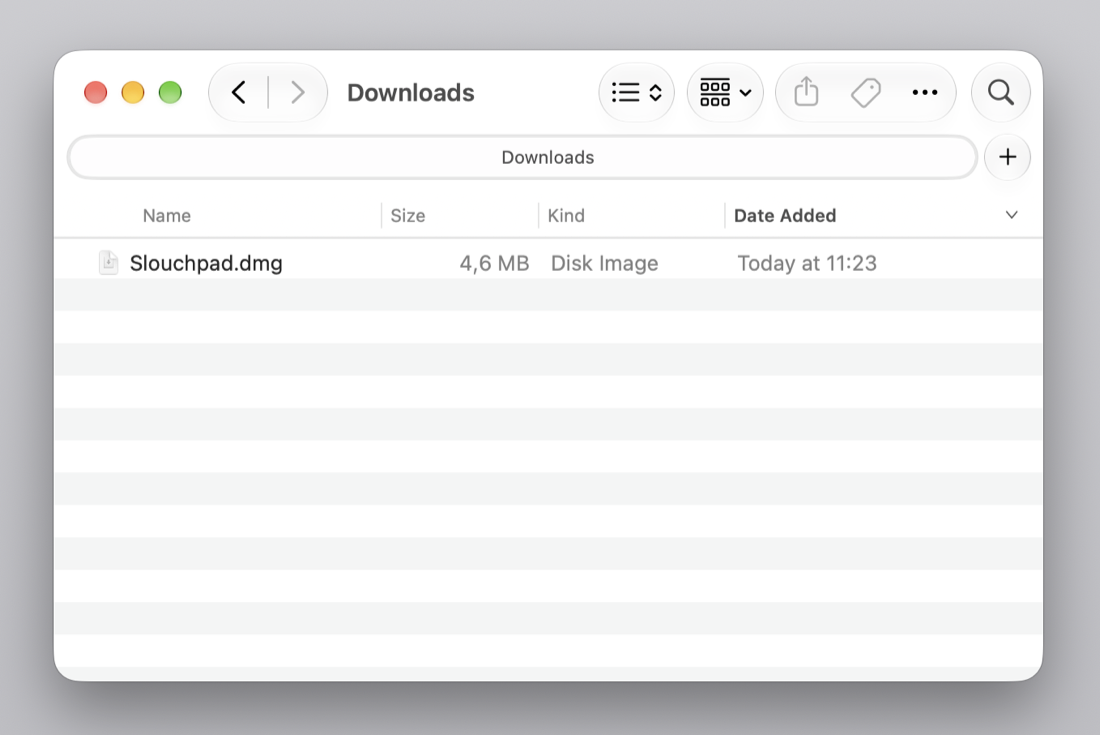
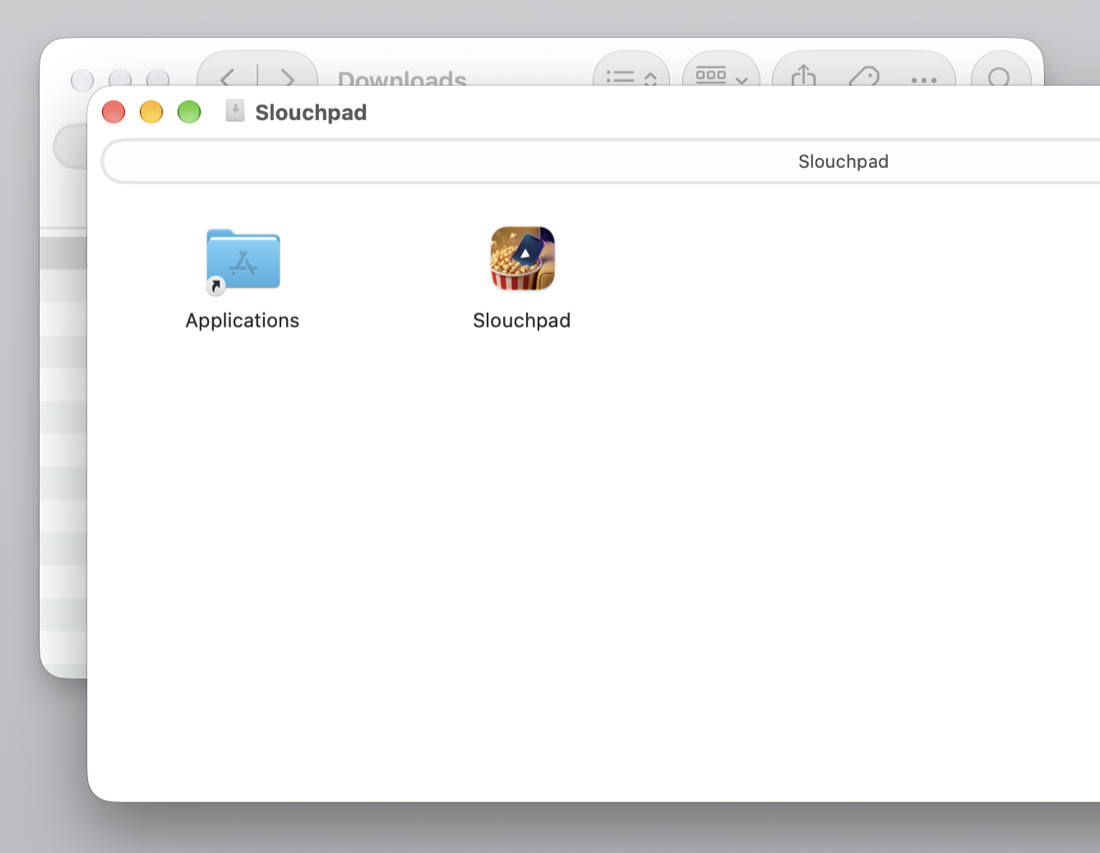
Download the Mac App, drag it to Applications and open it. It lives in your menu bar behind a couch icon.
Permit
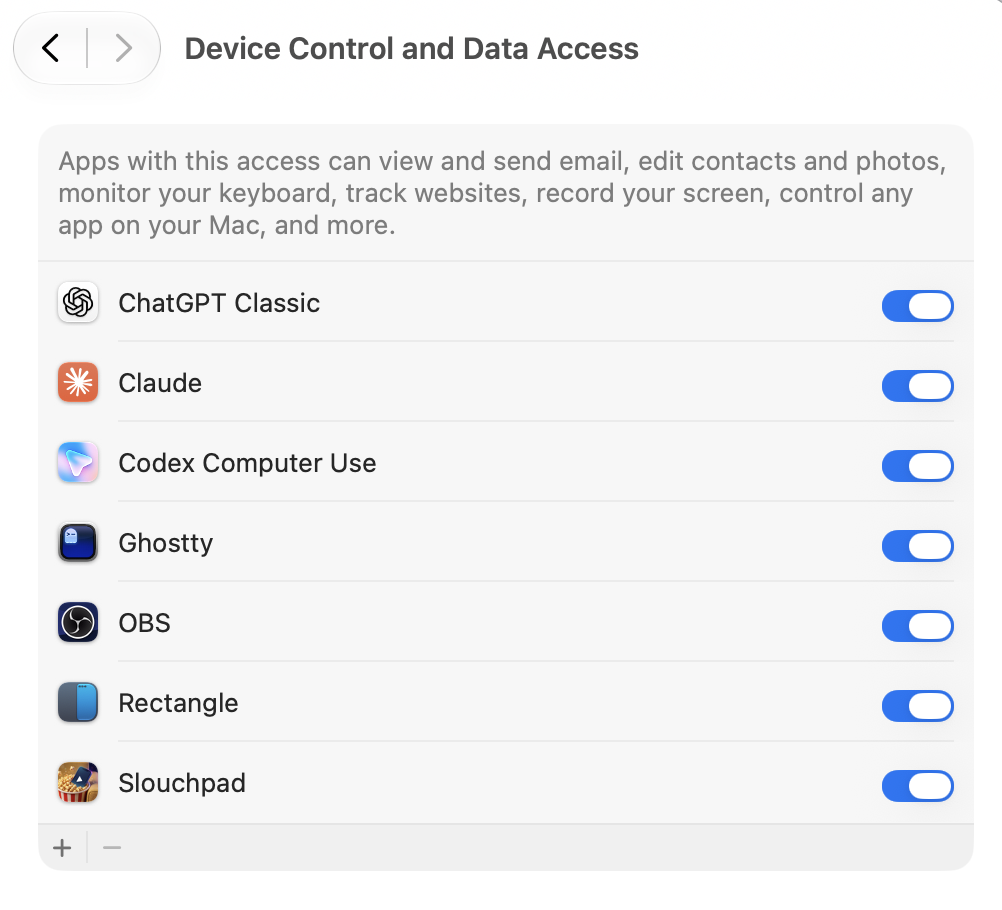
On your Mac: Under Privacy & Security, allow Slouchpad in Accessibility so it can move the pointer and press keys for your phone. The button in the menu takes you there.
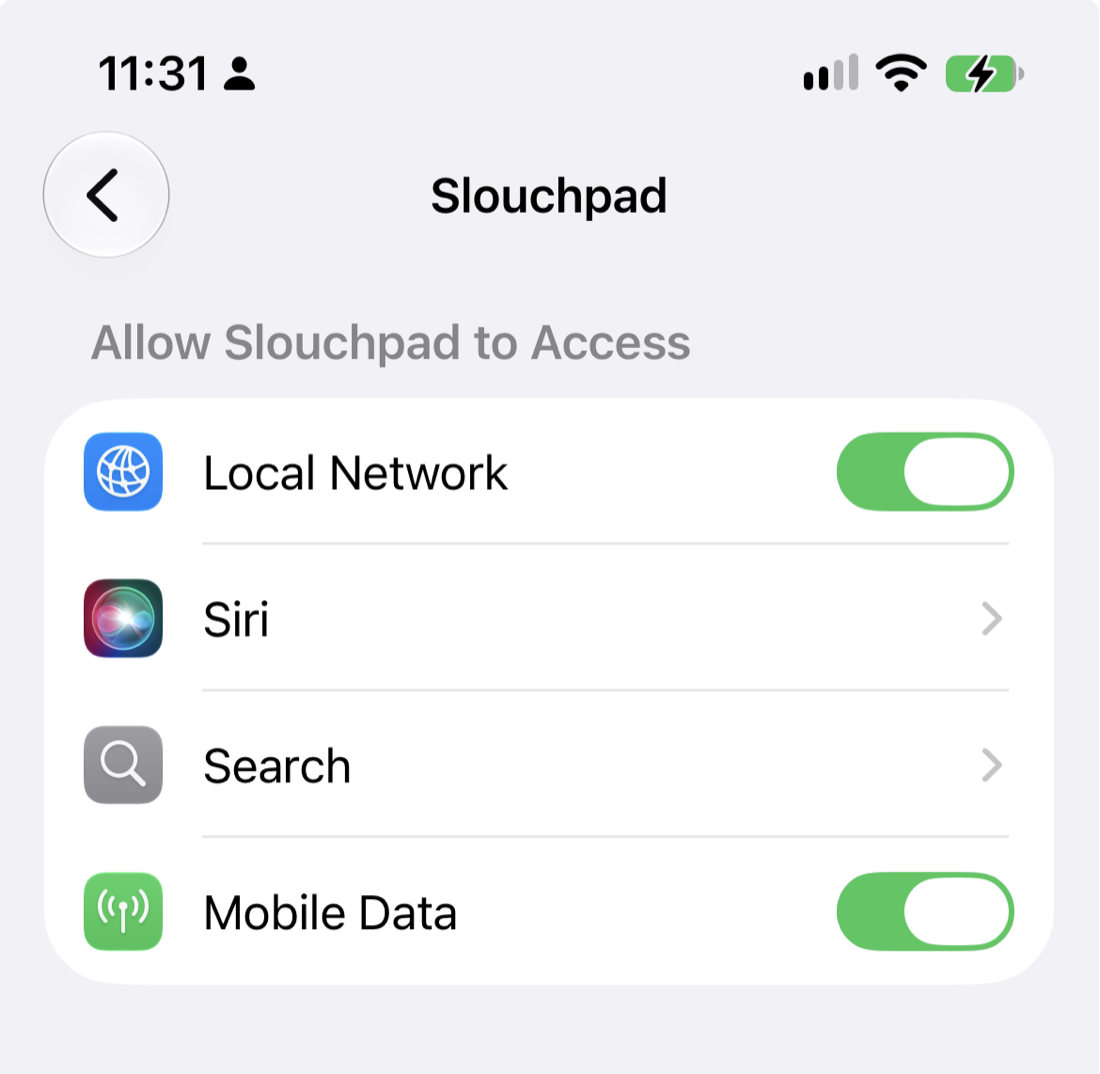
On your iPhone: Make sure Slouchpad has Local Network access (Settings, then Slouchpad) so it can find your Mac.
Connect
Open the Slouchpad menu to see your PIN, then enter it in the iPhone app and choose your Mac.
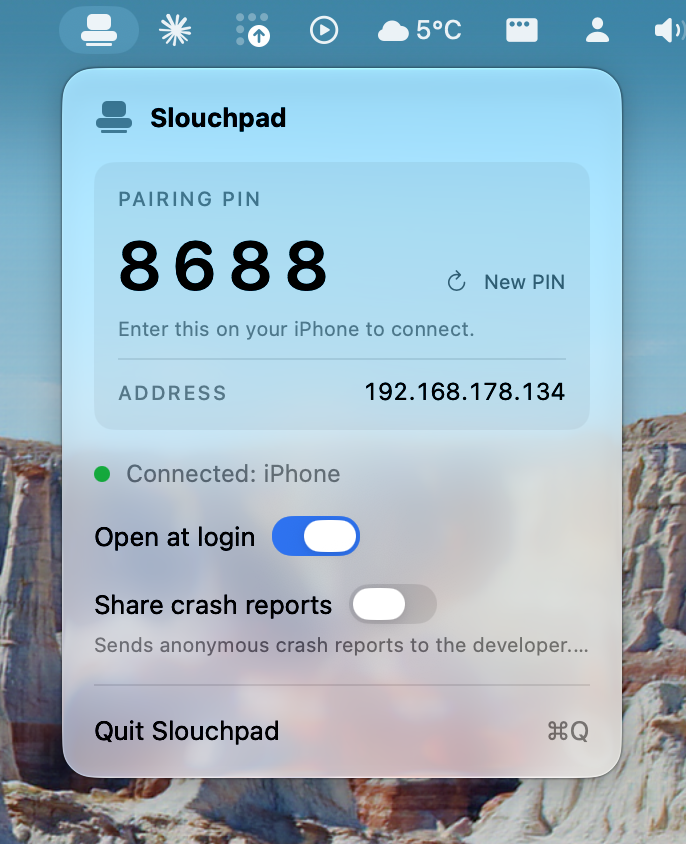
If your iPhone can't find your Mac
Some guest and hotel Wi-Fi networks stop devices finding each other. In the iPhone app, choose Manual under Connection, type the address shown in the Slouchpad menu on your Mac, then enter the PIN and connect.
Your iPhone and Mac need to be on the same Wi-Fi network. Brightness works on the screens macOS lets apps control, such as the built-in display and Apple displays. Many other monitors can only be adjusted with their own buttons.
Something not working? See Support, or write to support@slouchpad.com.